
Match the work.
Confirm the files, required output and review criteria. GO3D scopes the software and compute needed for that job.
Enhanced high end processing services provided by GO3D Cloud.
For the scans, models and visual projects that need more room to run. Start with the result you need; GO3D scopes the processing and delivery.
Service preview · Project scoping
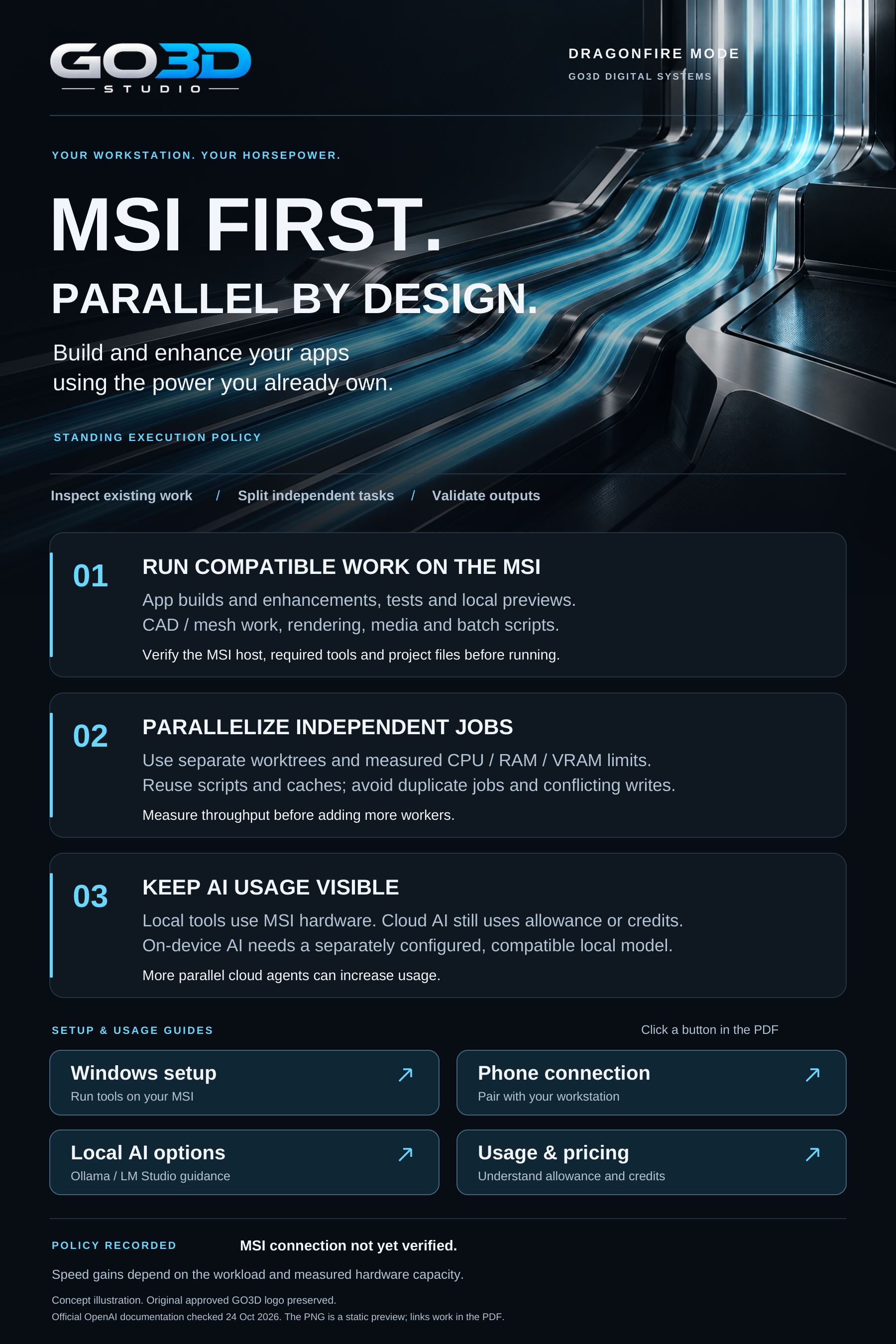
Build and enhance apps using the power you already own. Match each task to the right tools, resources and review.
Run app builds, tests, local previews, CAD and mesh preparation, rendering, media processing and repeatable scripts on the MSI when the required software and resources are available.
Run independent tasks in separate worktrees or job directories. Size concurrency to measured CPU, memory and VRAM capacity. Reuse scripts and cached results, avoid duplicate jobs and conflicting writes, and validate outputs.
Local tools use workstation hardware. Cloud AI calls still consume allowance or credits, and more cloud agents can increase usage. On-device AI requires a separately configured compatible local model.
Policy recorded · 24 Oct 2026. The MSI connection is not yet verified. Performance gains depend on the workload and measured hardware capacity.
Silent overview with on-screen text. Concept illustration; original approved GO3D logo preserved.
The new visual hardware brief and software compatibility list, with a hardware-only quote worksheet. Revisit this page for the latest published scope.
Open the Thor quote page ↗Explore the performance opportunity report, both comparison graphics, and the local processing guide in one place.
30 minutes of operator attention for a package assumed to require 8 conventional labor hours. That is a 16:1 labor-time ratio; the separate elapsed-time target is 1 hour. These are planning assumptions, not a measured benchmark.
Select a workload to explore the service and build a short brief for project scoping.
What are you working on?
This brief stays on your device. Nothing has been submitted.
Select the text and use your device’s Copy command.
This planner creates a brief. GO3D operators manage pilot inspection jobs in the protected processing console.
Compute is one part of the job. The right inputs, processing method and review criteria matter just as much.
Confirm the files, required output and review criteria. GO3D scopes the software and compute needed for that job.
Plan processing as a new revision. Preserve the original files and record the settings used to produce the result.
Agree how the output will be checked, reviewed and delivered for its intended use.
Cloud resources and explicitly connected GO3D workstations can be considered during scoping. The processing route depends on your files, software requirements and delivery needs.
Dragonfire Mode is part of GO3D Digital Systems.
Explore the processing services, create a brief on your device and open the contact page to scope a project. Authorized GO3D operators can use the separate console for the mesh inspection pilot, with guided workstation setup, job history and readable inspection reports. Other processing work is scoped per project.
Turning on the laptop or opening the same chat does not assign cloud computation to it. Its hardware can help when a supported processing job actually runs on that computer through an explicit connection. GO3D would need to configure and verify that connection first.
The right output depends on the source and design intent. GO3D reviews the required regions, surface detail, target software and file format before agreeing a conversion approach. A mesh, a fitted surface and an editable CAD part serve different purposes.
The service is scoped around preserving source files and delivering separately identified revisions. Repository access, output locations and retention are agreed for each project. This page does not read or upload your project files.
Dragonfire Mode is designed as a reusable processing service for scan review, CAD preparation, digital twin presentations and other GO3D workflows. Each application connection is included in the agreed implementation scope.
Start with your source files, intended result and where the output needs to go.